![Logo cyan rot quer.png]](https://help.releva.nz/hs-fs/hubfs/Logo%20cyan%20rot%20quer.png?height=35&name=Logo%20cyan%20rot%20quer.png)
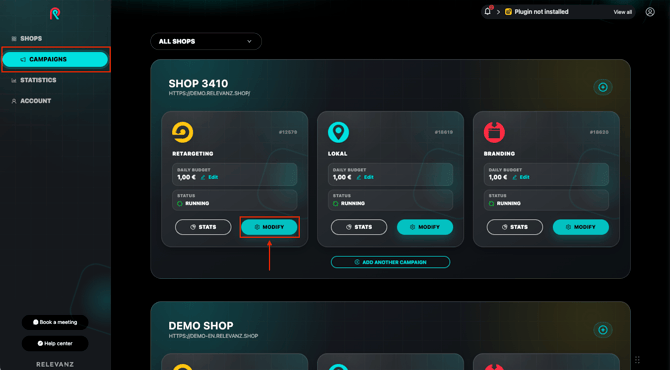
1. Open your campaign
Click “Campaigns” on the left, then click “Modify” next to the campaign you want to update.
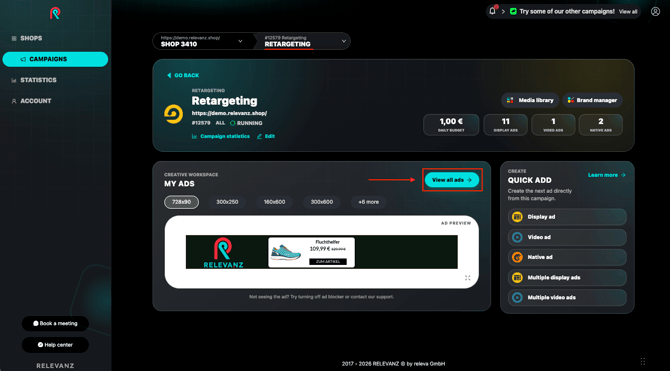
2. Open the ad creative overview
Click “View all ads”.
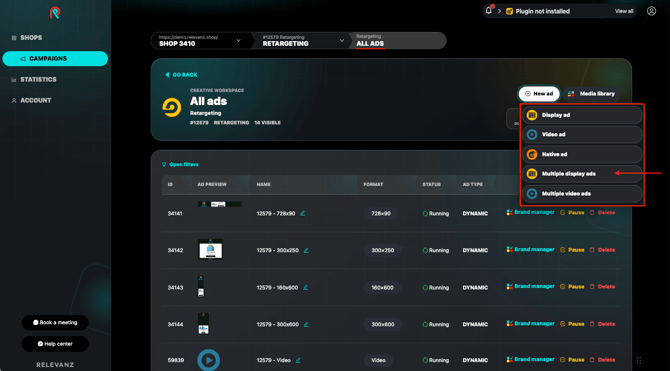
3. Select the multi upload option
Click “New ad” and select “Multiple display ads”.
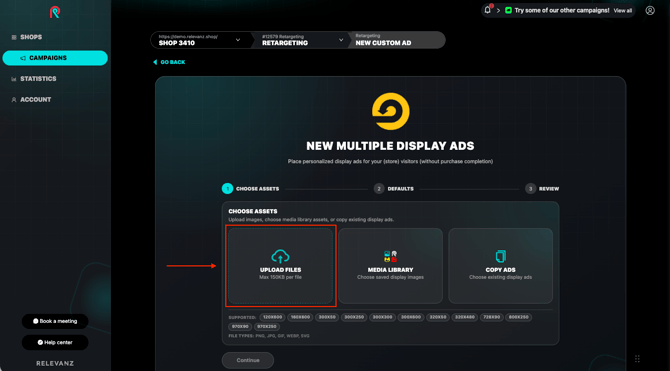
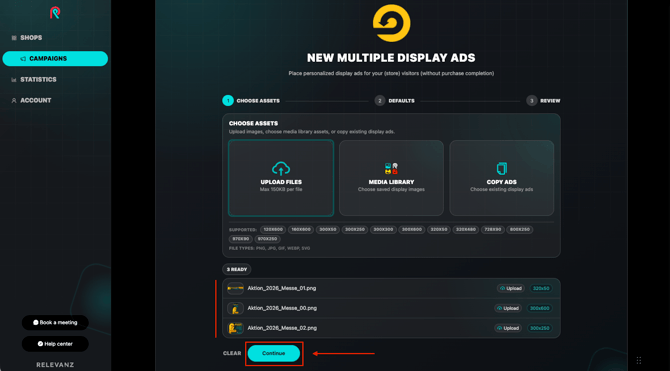
4. Select your files
Click “Upload files” and select the banners from your computer.
Before uploading, check the requirements in our FAQ: Ad formats & specifications.
5. Check your selection
Are all the files you want to upload listed? Then click “Continue”.
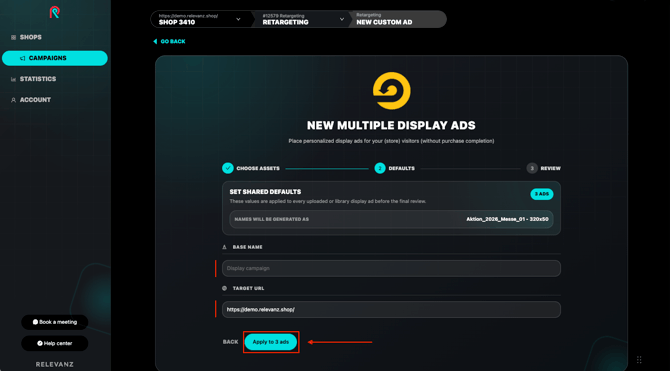
6. Set a name and landing page
Under “Base name”, you can enter a shared name for your banners.
Check the landing page entered under “Target URL” and update it if needed.
This is the page people will visit after clicking your banner.
Click “Apply to … ads” — In this example, “Apply to 3 ads”. These details will be applied to all selected banners.
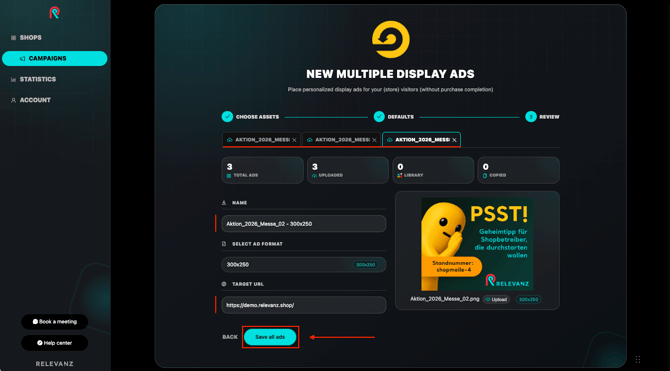
7. Review and save
Use the tabs at the top to open each banner and check its preview, name, format, and target URL. You can adjust the name and target URL for each banner individually.
Then click “Save all ads”.
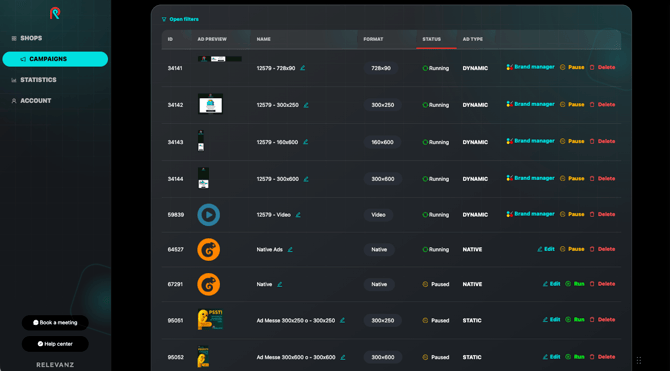
8. Done!
Your banners will appear in the “All ads” overview.
The “Status” column shows whether a banner is active (Running) or paused (Paused).
Frequently asked questions
Can I upload just one creative?
Yes. To upload a single display banner, click “New ad” and select “Display ad”.
Can my banners link to different landing pages?
Yes. In the “Review” step, you can change the target URL for each banner individually.
Can I edit or pause my banners later?
Yes. In the “All ads” overview, click “Edit” to update an uploaded banner or “Pause” to pause it.